Use My worklists to create custom workslists that fit the tasks on your farm. Choose which columns you want to see, use filters to automatically add animals that meet specific criteria and determine which action buttons you need to update your administration.
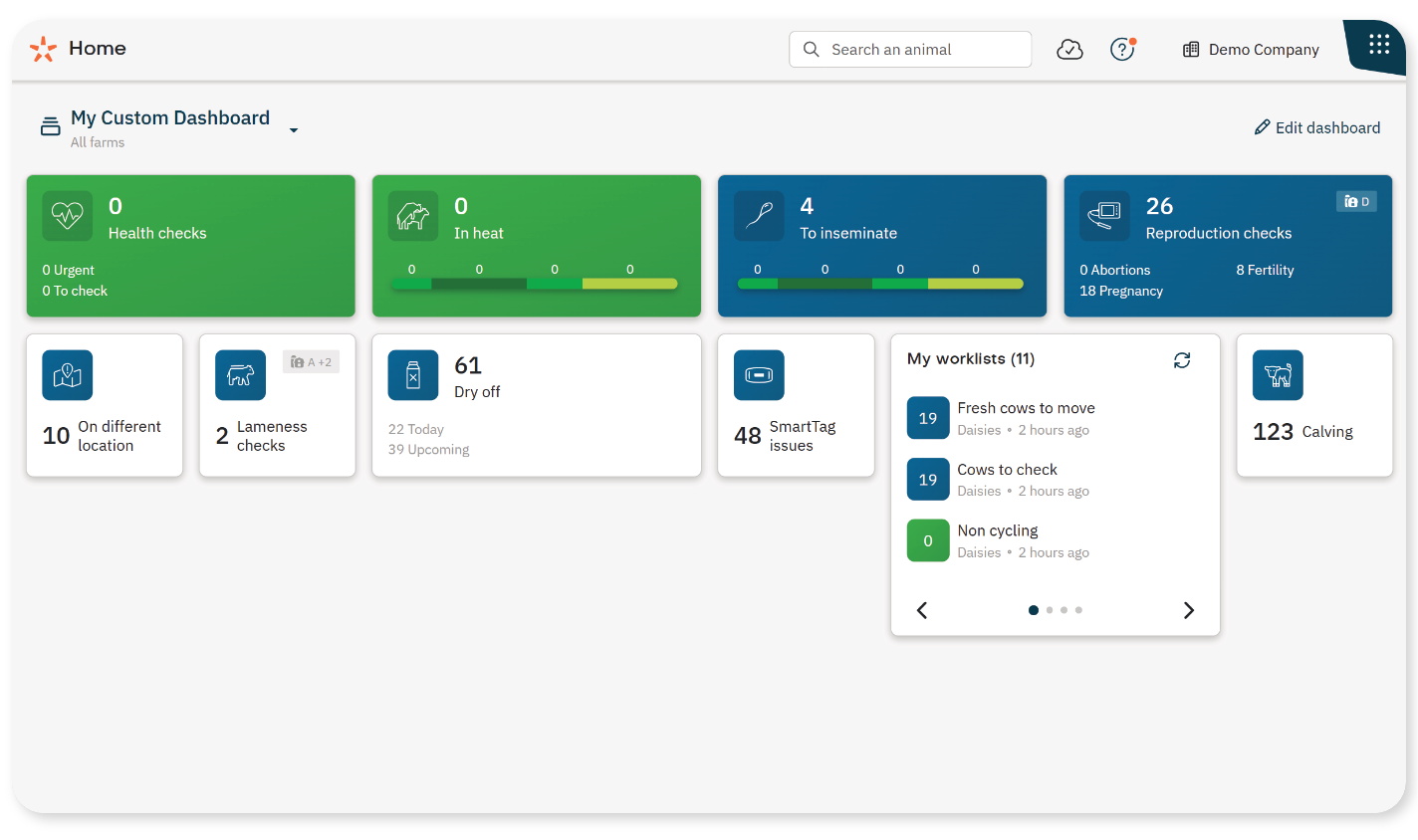
Custom worklists appear under My worklists in the Worklist app and on you can add a dashboard widget. There is no limit to the number of worklists you can create.
Create a Custom Worklist
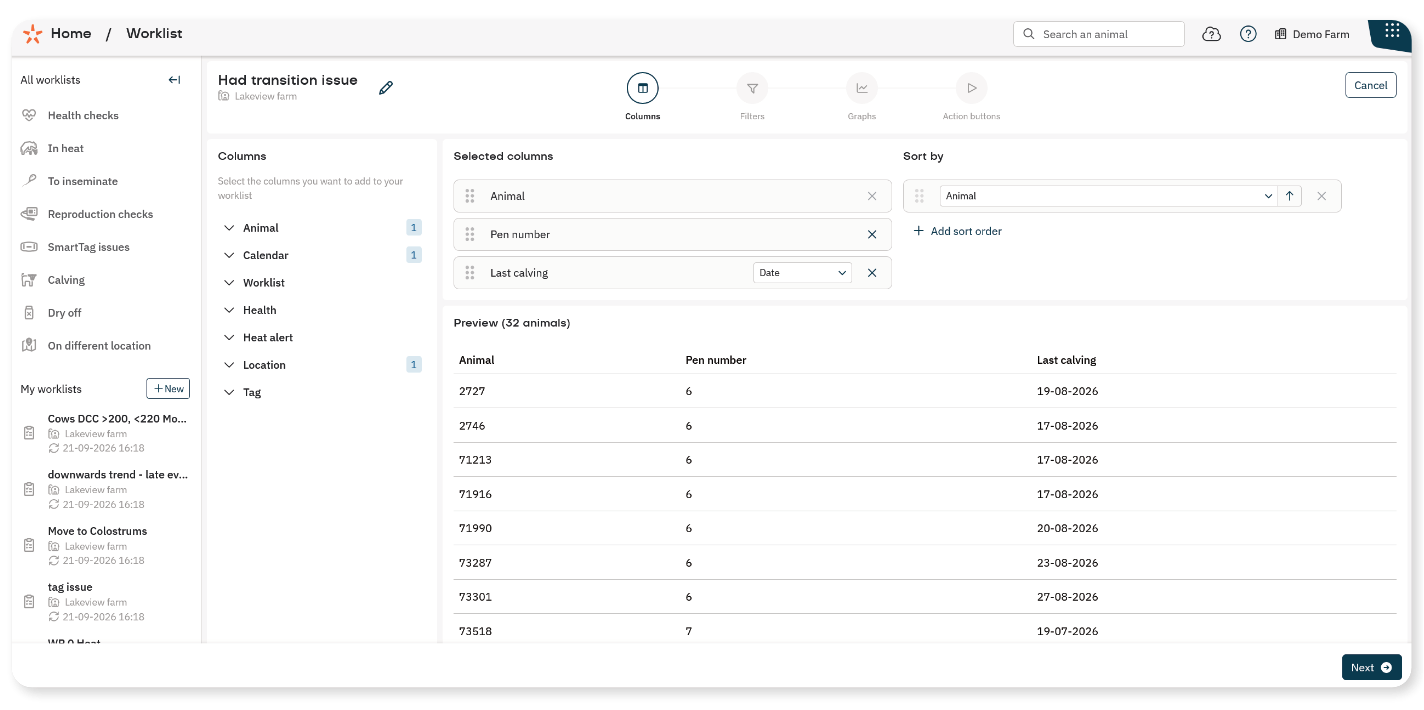
The custom worklist setup guides you through four tabs: Columns, Filters, Graphs and Action buttons. A preview shows how the worklist will look once a valid filter is set.
- In the Worklist app, select + New next to My worklists.
- Enter the Name of the worklist and select the farm that this worklist is made for. A custom worklist can only belong to one farm.
1. Select columns
Columns determine which information appears in the worklist.
- On the Columns tab, select + next to each column to add.
- In Selected columns, drag the columns to change their order.
You can add as many columns as needed, including the same column more than once. See the Overview of Filters and Columns for the available options.
If needed, choose how to sort the animals:
In Sort by, select + Add sort order.
Select a column from the drop-down list.
Select the arrow next to the column to switch between ascending (↑) and descending (↓) order.
To sort by more than one column, add another sort order. Drag the sort options to set their priority. The top option has the highest priority.
Select Next.
2. Set filters
Filters determine which animals are automatically added to the worklist. To use filters:
On the Filters tab, select + next to a filter in the left panel.
In Selected filters, select an operator, such as = or contains, if available.
Enter or select the value. For date filters, also check the selected time unit, such as Days ago.
Check Preview to see whether the expected animals appear.
Repeat these steps to add more filters.
TipAdd and set up one filter at a time. Check Preview after each filter. If the results are unexpected, check the operator and value of the filter just added.
You can add as many filters as needed, including the same filter more than once. To remove a filter, select × next to it.
See the Overview of Filters and Columns for the available filters and the Overview of Filter Operators for help choosing an operator.
Select Next.
3. Include Graphs
Graphs provide more context about an animal’s health, movement or reproduction. They help show changes over time and support decisions about follow-up actions.
- If needed, select the health, locomotion or reproduction graph to include on the Graphs tab.
- Select Next.
4. Add action buttons
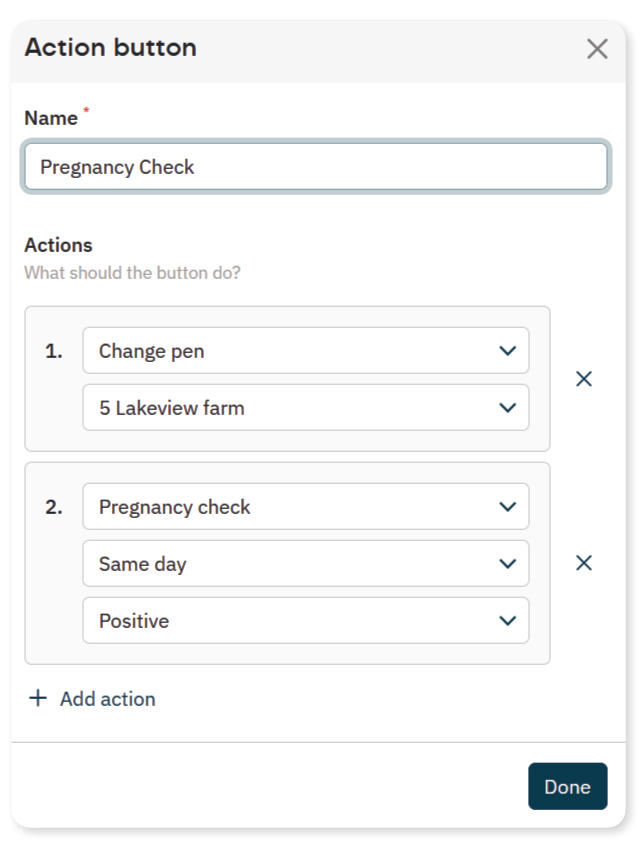
Action buttons make it easier to perform common tasks directly from the worklist, such as adding a flag or changing an animal’s pen. A single button can combine several actions.
If needed, create up to two action buttons on the Action buttons tab. The buttons appear as icons in the worklist. Hover over an icon to see the name assigned to the button.
An action button can contain 1 to 11 actions, each with 1 to 3 subactions. The order of the actions does not matter, but conflicting actions cannot be combined in one button. For example, do not combine Delete animal and Change pen.
Select Save in the upper-right corner to save the worklist. The worklist appears under My worklists on the Worklist dashboard.
